 Deutsch
  España
  Francais
  Polish
  Russian
  Čeština
  Greek
Greek  Lithuania
  Romanian
  Arabic
  Português
  Indonesian
  Croatian
  Serbia
  Farsi
Farsi  Hebrew
  Mongolian
  Bulgarian
  Georgia
  Azerbaijani
  Thai
Thai  Turkish
  Magyar
 How to Set Up Two-Step Verification for an Administrator
Two-step verification (2FA), Account security, Administrator profile, Untrusted device


An administrator in EduPage has the option to enable two-step verification directly on their administrator profile.
Two-step verification can be used if another user (e.g., a teacher) is assigned to the administrator profile and sets up two-step verification in their own profile.
Assigning a user to the administrator profile
Log in to EduPage as an administrator.
Go to your profile, select Two-step verification and choose the user who will confirm the login in their mobile application.
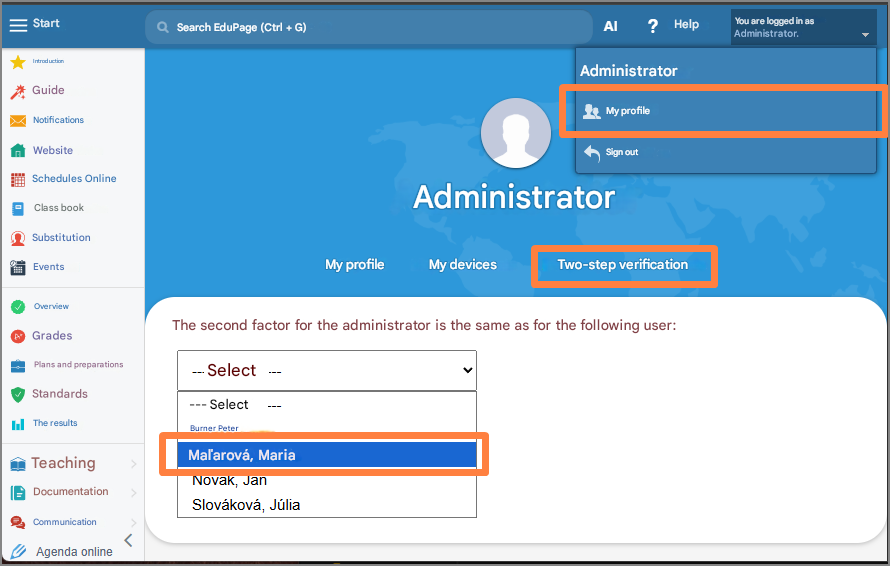
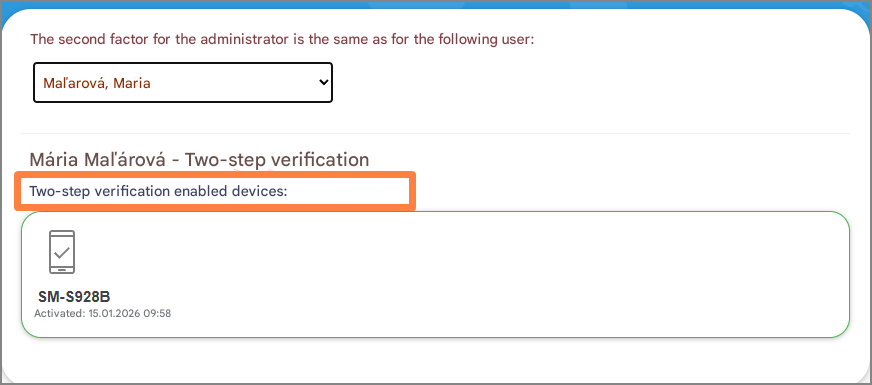
If the assigned user already has Two-step verification set up, a corresponding message will be displayed.
If the assigned user has not yet activated two-step verification, follow the instructions: How to set up 2FA for your EduPage profile in mobile phone
Done
From this moment on, when an administrator signs in (through the assigned user) or when signing in from a new or untrusted device, an additional verification code will be required. This code will be sent to the mobile device of the assigned user. This increases the security of the administrator account.