 Deutsch
  España
  Francais
  Polish
  Russian
  Čeština
  Greek
Greek  Lithuania
  Romanian
  Arabic
  Português
  Indonesian
  Croatian
  Serbia
  Farsi
Farsi  Hebrew
  Mongolian
  Bulgarian
  Georgia
  Azerbaijani
  Thai
Thai  Turkish
  Magyar
 How to print library / textbook storage book records.
library, textbook storage, print, records


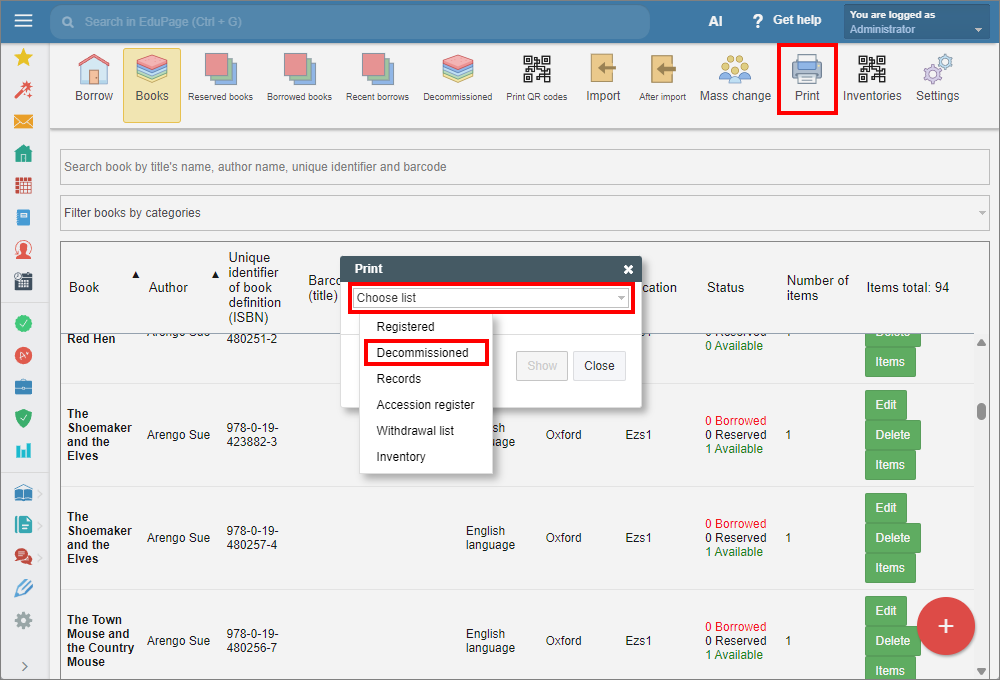
In the Library / Textbook storage module, select the “Print” tab from the top main menu.
Click “Choose list” to open the drop-down menu and select the desired list.
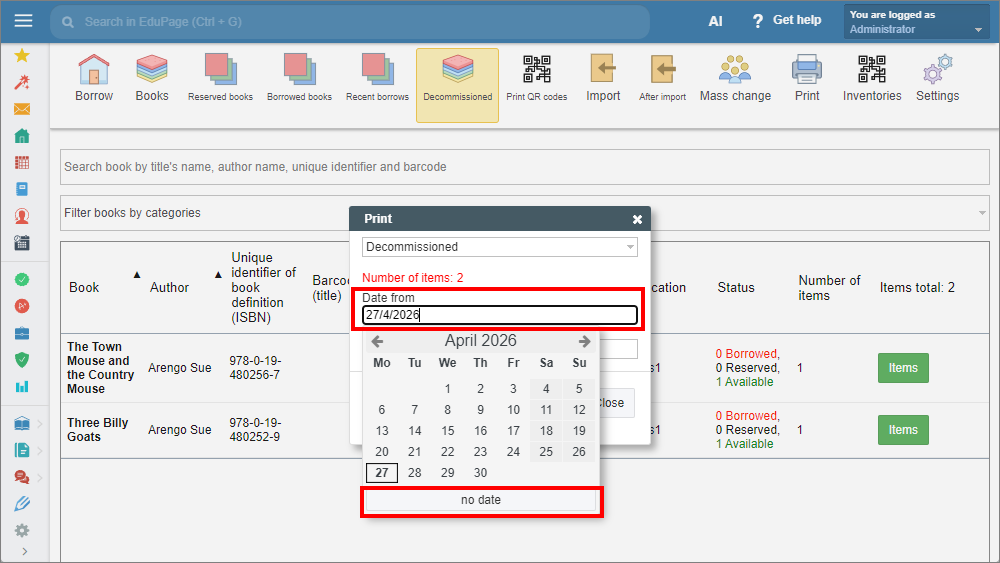
The “Registered”, “Decommissioned”, "Accession register" and "Withdrawal list" options require you to specify a date range. Enter the dates. If you do not wish to specify a start date, select “No date” in the “Date from” field. Click “Show” to continue.
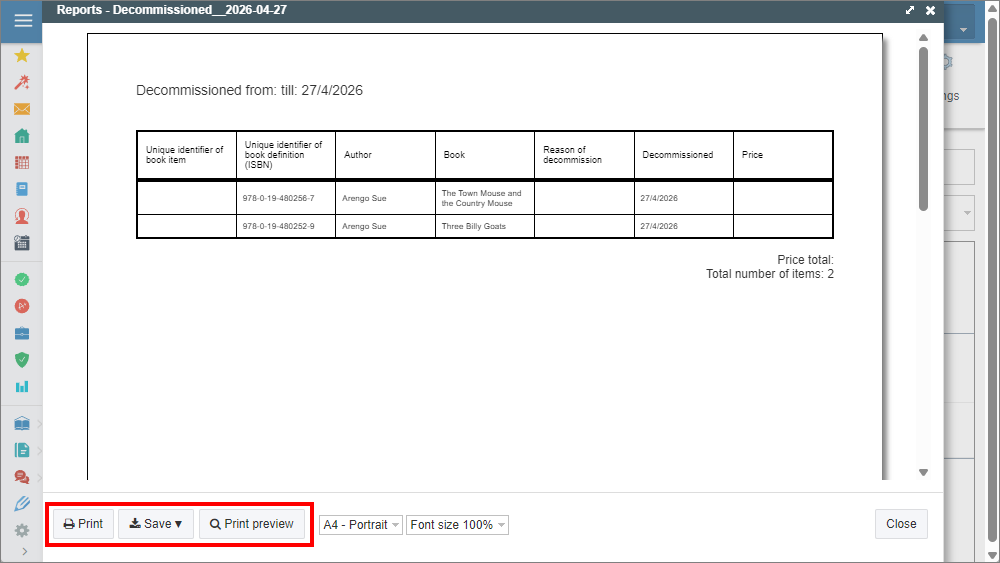
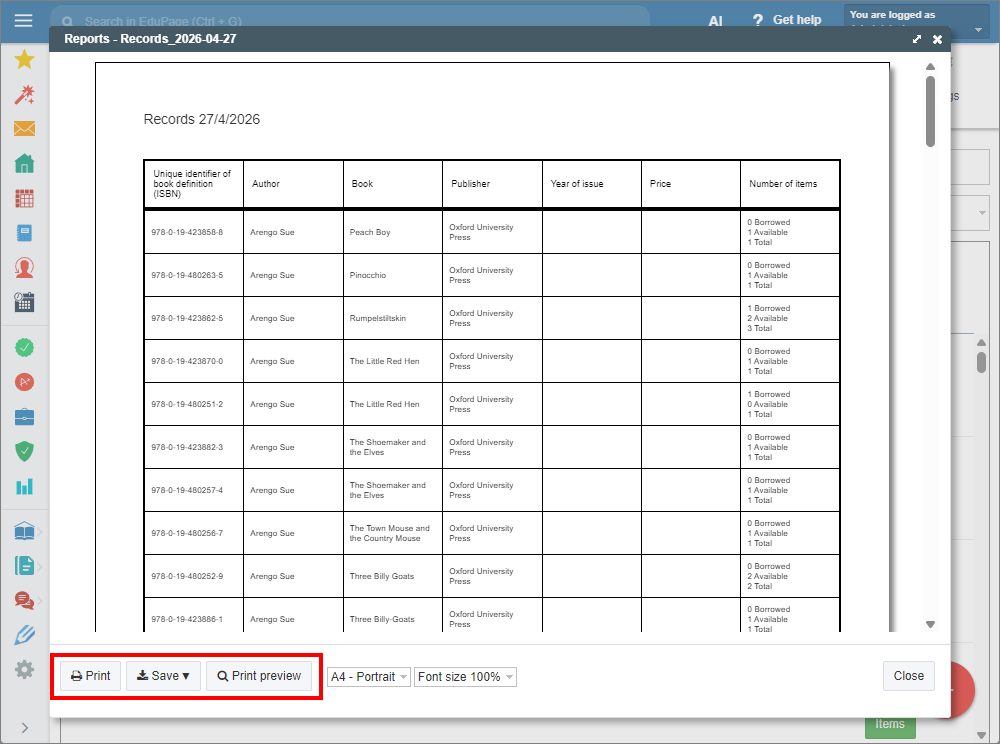
A preview of the selected record will appear. You can choose to print it, or save it as a pdf or html file.
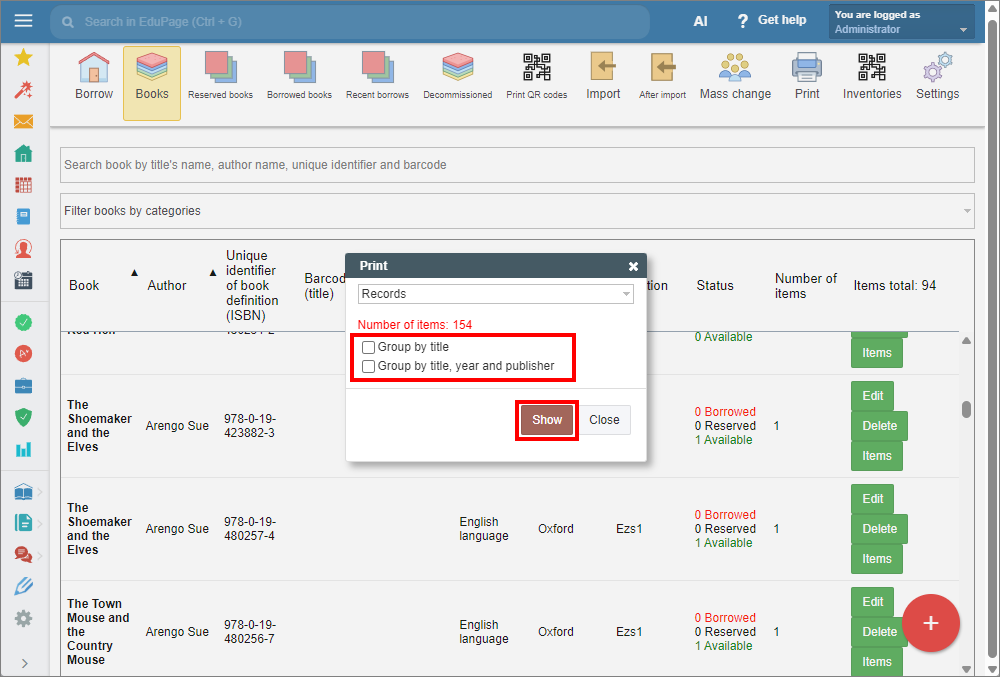
By selecting the "Records" option, you will see the complete list of books in your catalogue. You can group the items by title, or by title, year, and publisher if needed. Then click "Show".
A preview of the selected record will appear. You can choose to print it, or save it as a pdf or html file.
See also:
Library Administration - Quick overview
Textbook Storage Administration - Quick overview